

How to Lock Chats in GBWhatsApp

GBWhatsApp offers advanced chat locking features to protect private conversations from unauthorized access. Locking chats can be a great way to protect your conversations from prying eyes and add an extra layer of security to your messaging experience. In this article, we’ll guide you on how to lock chats in GBWhatsApp, ensuring your sensitive conversations stay private and secure.
Why Lock Chats in GBWhatsApp?
Before we dive into the steps, let's briefly talk about why you might want to lock chats in GBWhatsApp. Here are a few reasons:
- Privacy Protection: Locking a chat prevents anyone from accessing it without the correct password, PIN, or fingerprint.
- Security: Adds an extra layer of security to your chats, making it more difficult for unauthorized users to view your private messages.
- Organized Messaging: You can lock important or confidential chats while leaving the rest open for easy access.
Step-by-Step Chat Lock Configuration Process in GBWhatsApp
Step 1: Navigate to the Settings Menu
To lock a chat, you first need to access the settings menu within GBWhatsApp. Here’s how:
- Open GBWhatsApp and tap on the three vertical dots in the top-right corner of the screen.
- In the drop-down menu, select "GB Settings" to access the app's customization options.
Step 2: Enable the Chat Lock Feature
Once you’re in the settings menu, locate the option for chat lock. This feature is available in GBWhatsApp and allows you to lock specific chats. To enable this feature:
- In the GB Settings menu, tap on Privacy and Security.
- Under this section, look for the "Lock Chats" option and enable it.
- You’ll be prompted to set up a PIN, pattern, or fingerprint (depending on your device’s capabilities). Choose your preferred method of locking.
Step 3: Lock a Specific Chat
Now that the chat lock feature is enabled, you can lock individual chats. Here’s how to do it:
- Open your GBWhatsApp app and go to the chat list.
- Long-press the chat you want to lock.
- From the options that appear at the top, tap on the "Lock" icon (it might look like a padlock).
- The selected chat will now be locked and require the PIN, pattern, or fingerprint to open.
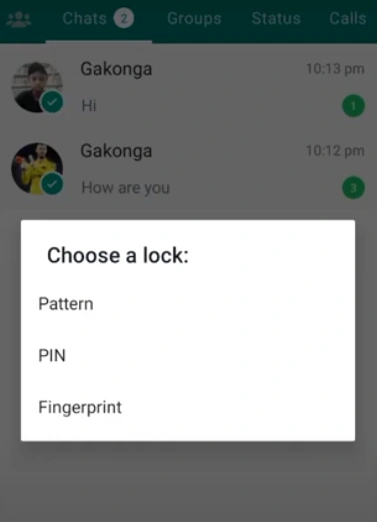
Available Chat Lock Methods and Security Levels in GBWhatsApp
GBWhatsApp supports three primary locking mechanisms with varying security strengths:
- Pattern Lock: Medium security using connect-the-dots pattern
- PIN Code: Four to six-digit numerical code protection
- Fingerprint: Biometric authentication for supported devices
Pattern lock offers quick access. PIN codes balance convenience and protection. Fingerprint authentication delivers both security and instant access.
Benefits of Using Chat Lock Feature in GBWhatsApp
Implementing chat lock provides multiple privacy advantages:
- Prevents unauthorized access to sensitive conversations
- Maintains privacy when sharing devices with others
- Protects confidential business and personal information
- Adds extra security layer beyond device lock
- Controls visibility of specific chat content
- Ensures private messages remain discreet
The feature is particularly valuable for users handling sensitive business communications or maintaining multiple relationships.
Security Considerations When Using GBWhatsApp
Maintaining optimal chat protection requires ongoing attention:
- Regularly update GBWhatsApp to latest version
- Avoid obvious patterns or easily guessed passwords
- Enable two-factor authentication where available
- Monitor locked chat list for unauthorized changes
- Combine chat lock with device security features
- Maintain backup of important conversations
- Understand GBWhatsApp mod limitations and risks
Proper security practices ensure maximum protection while minimizing potential access issues.
Final Thoughts
Locking chats in GBWhatsApp is an excellent way to enhance the privacy and security of your messages. Whether you’re looking to protect sensitive information or simply want an extra layer of security, the chat lock feature in GBWhatsApp is easy to use and offers customizable options for added peace of mind.
By following the steps outlined in this guide, you can lock and manage your chats effectively, ensuring that only you or trusted individuals can access your most private conversations. Remember to always keep your app updated to enjoy the latest features and improvements.